GDPR: Manual for GDPR records with Responsum
From June 26th 2026 onwards, registration of processing personal data in research at Ghent University should be done through Responsum. Responsum is a new online tool to help Ghent University researchers register the processing of personal data in their research projects and collaborations. Responsum shall replace DMPonline.be for UGent GDPR-registrations.
This tip explains how to use Responsum. More information on the register of personal data processing activities can be found in the tip 'GDPR: how do I register personal data processing activities?'.
What is a GDPR record?
The General Data Protection Regulation (GDPR) requires that all activities concerning personal data processing at UGent are documented and registered in a 'register of processing activities', the GDPR Register.
For the processing of personal data in their research projects and collaborations, UGent researchers must carry out this obligation by completing a GDPR record.
The GDPR record is an essential tool to help researchers comply with the principle of accountability, as a start towards GDPR compliance.
Writing a GDPR record with Responsum
Users can sign into Responsum with their UGent account. The tool takes them step-by-step through a number of GDPR questions. Guidance is also provided to help users interpret and answer the questions.
How the Responsum tool works
The instructions and screenshots below explain the main features of the Responsum tool in more detail.
1. Signing in
Go to Responsum.
When you visit the Responsum tool, you will be asked to provide an e-mail. Enter your Ghent University e-mail, tick the box ‘remember me’ and select ‘I’m not a robot’. Make sure to tick the box 'remember me' to receive a confirmation email.
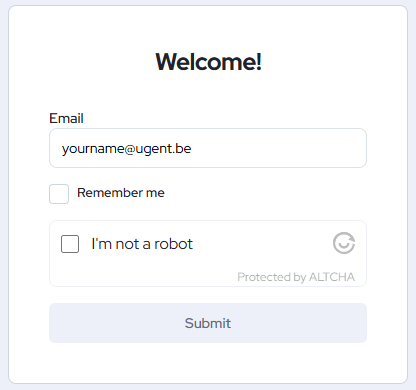
Responsum will require you to verify your e-mail for your first login.

After this you will be taken to the 'My new & draft GDPR records’ page in Responsum.
You may be directed to the UGent authentication page first, where you will have to enter your UGent-credentials.

2. You're signed in, now what?
On the first tab ‘New & draft GDPR records’, you can create new GDPR records or edit your draft records (see further).

On the second tab 'Finalised GDPR records’ you can access older GDPR records and recently finished (finalised) records. Here you can edit, share and export your GDPR record(s). If you have multiple GDPR records, you can change pages by navigating the tabs at the bottom left of the page and choosing your destination.
Here you can also find the records that you have made in the past with DMPonline and the GDPR records that others have shared with you.
Disclaimer: the second page ‘Finalised GDPR records’ may be hidden on a first login if you have no prior GDPR records. Once a GDPR record has been created and finalised in Responsum, this tab will be visible.

You can change the language of Responsum by clicking on your profile at the top right of the page.
3. Creating a new GDPR record
To create a new GDPR record, click the ‘Create a new GDPR record’ button on the ‘New & draft GDPR records' page. If you do not see the 'Create a new GDPR record' button, browse to this url first.

A GDPR questionnaire will be initiated:
The first section of the GDPR record holds general project details. Here you can enter the title of the project for which you are creating a GDPR record, give details about the research (your project abstract), start and end dates and contact persons.

Add all persons you want to have access to the GDPR record under the question ‘contact persons’. These contact persons will have access to the GDPR record (once finalised) under the tab ‘Finalised GDPR records’ (in their own Responsum environment). You can share GDPR records with UGent colleagues who are part of the research team, or external partners.

A GDPR record consists of several sections that each comprise one or more questions depending on your answers. When going to the next section, you will see the GDPR record question at the top, and a text box below (or another answer format such as a dropdown menu) to enter your answer.
Guidance to help you answer the questionnaire is provided below each question in a box marked with an ‘i’ sign. To expand this guidance, click ‘read more’. In the guidance, you can also find links to the research tips, with more detailed information on several GDPR topics.
A progress indicator at the bottom shows how many questions you have answered. All questions must be answered before you can finalise the GDPR record.
4. Editing or sharing a GDPR record
If you close the GDPR record while drafting it (and before finalising it), the GDPR record will automatically be saved as a draft, which may be finalised later. Draft GDPR records can be found under the "New & Draft GDPR Records" tab, just below the option to create a new GDPR record. In the "New & Draft GDPR Records" tab, you can continue editing your draft until you finalize it yourself (see below).
You should only finalize your GDPR record once all information has been entered correctly and completely. After you have finalized a GDPR record, downloaded it, and uploaded it to GISMO for legal support by the TT Legal team, the team will work with the uploaded version. It is the researcher's responsibility to upload the final and correct version of the GDPR record.
Only if necessary, can you still edit your finalized GDPR records in the 'Finalized GDPR Records' tab. You can edit a GDPR record by opening it and clicking "Edit" in the top-right corner. Once you have finished making changes, you can save the GDPR record by clicking "Save" in the top-right corner.
The GDPR records you made in the past with DMPonline will be accessible through the tab ‘Finalised GDPR records’. You can edit them on the same page.

A version history can also be accessed by pressing the three dots at the top right. This shows when edits were made to the GDPR record and by whom.

If you wish to share the GDPR record with another person, you can add them to the field ‘contact person’ at the top of the GDPR record questions. Every person mentioned here will be able to access the GDPR record under the tab ‘Finalised GDPR records’ (only for finalised records, draft records are shown under the. tab ‘New & draft GDPR records’).

5. Finalising a GDPR record
Once you have filled in all the questions and thus completed the GDPR questionnaire, you need to finalise the GDPR record by pressing the finalise button at the top right of the screen. You may and will only be able to finalise the questionnaire after having filled in every single question.

If you close the GDPR record before finalising it, the GDPR record will be saved as a draft, which may be finalised later.

After finalising the GDPR record, it may take some time for the record to be processed by Responsum and show up under the tab ‘Finalised GDPR records’. You will receive an e-mail once the GDPR-record is processed and available in Responsum.
6. Exporting a GDPR record
Within UGent and UZ Gent, the GDPR record must be added to dossiers submitted to ethics committees and legal support questions (TT Legal Team). To do so, you need to download your GDPR record from Responsum and upload it to the required portal (e.g. GISMO). Only completed and finalised GDPR records can be downloaded.
Under the tab 'Finalised GDPR records', you can open a GDPR record and press the three dots at the top right for more options. Here you can select either an export in a Word format (.docx) or a PDF format (.pdf). Both formats have a date marked on the document to indicate when the export was made. For ethics committees and TT Legal Team, a PDF format is recommended.

It may take a couple of minutes for the export to be ready. You will receive a notification in the top right of your screen or via e-mail once the download is ready.

More information and support
- For more information see the research tips Privacy and research
- For more information on Research Data Management and GDPR, also see Ghent University’s RDM webpages.
- For questions or problems regarding the Responsum application, contact helpdesk.responsum@ugent.be.
More tips
- DMPonline.be: how do I write a Data Management Plan? (Write)
- GDPR: how do I register personal data processing activities? (Research integrity & ethics)
Translated tip
Last modified Aug. 24, 2026, 10:16 a.m.