Library: how to use the library catalog?
At lib.ugent.be, you can search the library collections and millions of online sources simultaneously. Depending on your research goals, you can use the website in different ways.
To view all options in the catalog, it is best to log in. You can do this via the icon at the top right; once logged in, you will see your initials there.
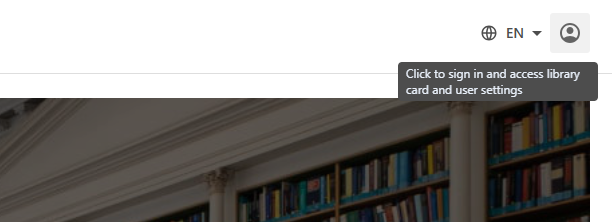
Logging in with your student or staff UGent account on lib.ugent.be is sufficient to gain access to UGent-only collections from home or on the go. Read more about remote access and VPN here.
Within what scope do you want to search?
In the catalog, you can choose to search ‘Everything’ or just ‘In the library’. Your choice will affect the results.
Select Everything if you want to search as many sources as possible, both the physical library collections and articles and book chapters available online.
Select In the library if you only want to search what is physically available in our libraries.
Your search query
Enter a relevant search term. If you want to combine or exclude search terms, you can use Boolean operators or the ‘advanced search’ button below the search bar.
Once your search has been launched, you will see how many results have been generated at the top. You can further refine your results from here by using the quick filter buttons at the top or All filters on the left.
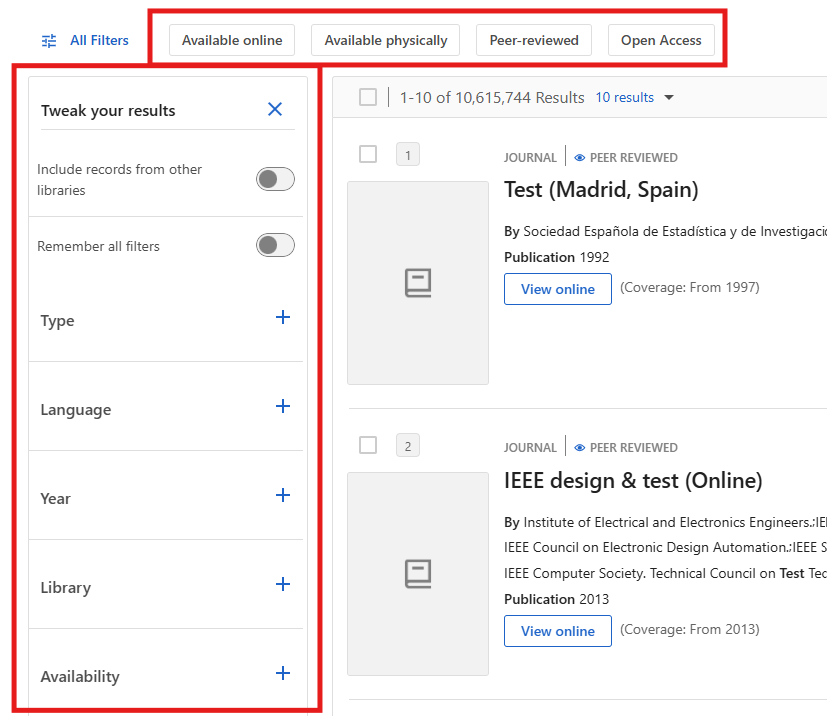
Search results are sorted by relevance by default. You can adjust the sorting at the top right to suit your preferences.
At the top of the search results, you will see Save all results. Click on this if you want to save certain searches in your profile. You can then also choose to receive notifications via email when there are new results for that search.
Understanding search results
The list of search results contains the basic details of each record. You can immediately see whether the record is available physically or online.
- For physically available records, you will see the location or one of the locations where you can find the work. Click through to see the exact location(s) and/or request options.
- For records available online, you will see a ‘view online’ or ‘read online’ button, which often links directly to the digital or electronic file.
You can click on each title to see a detail page with more information and all request or viewing options.
Share, save, or export search results
In your search results, you will also see four buttons for each record, which you can use to share, export, save, or copy the reference.

- You will find the permalink for the record behind the share button.
- Using the export button, you can export the data to your preferred reference manager, print it, or open it in Excel.
- Within the catalog, you can save records so that you can always find them again. The list of saved records is available in your profile by clicking on your initials in the top right corner, you can also organize them further by labeling the records.
- You can copy the reference to the record directly in different citation styles. You can read more about this here.
What can you do with your search results?
That depends on the type of record.
- If it's physically available, you will see the different locations and corresponding request options.
- If it's available online, you can often click directly on the external link. In the case of digitized collection items, you can usually consult the source within the catalog.
Looking for a book? Read more information here about how best to proceed.
Looking for an article? Read more information here about how best to proceed.
Looking for a magazine or newspaper? Read more information here about how best to proceed.
If you have any questions or feedback, feel free to contact us at libservice@ugent.be
More tips
- Article: requesting an article from another library (Search / find)
- Book: can I borrow a book? (Search / find)
- Book: how and where to find it? (Search / find)
- Book: how do I request a book from another library? (Search / find)
- Recources: using Lean Library for e-sources (Search / find)
- Remote access & VPN (Search / find)
- Scholarly article: where to find it? (Search / find)
Translated tip
Last modified March 9, 2026, 11:48 a.m.